Build an event website
Choose an event and template, edit Page Studio drafts, and check mobile before deciding to publish.
Illustrated sample. No messages sent, payments taken or account changes made.
 Sample workspace1 / 7
Ready to play.
Event / Synthetic draft
Event Website Wizard
- Event type
- Community event
- Event name
- Neighborhood Makers Day
- Date
- October 17, 2026
- Location
- Community square, Austin
Event visibility: Private
Event / Synthetic draft
Purpose, content, and design
Selected website template
Community Gathering
- Welcome
- Date and location
- What is happening
Event Details / Invite & RSVP / Gallery
Three editable drafts prepared for Page Studio
Event / Synthetic draft
Page Studio / Event Details
- Template heading
- Welcome to our event
- Heading
- Meet the makers. Enjoy the afternoon.
Event Details / Welcome block
Meet the makers. Enjoy the afternoon.
Local makers, live music, and a relaxed afternoon together.
Heading and welcome updated in the draft
Event / Synthetic draft
Page Studio / Image
- Image alternative text
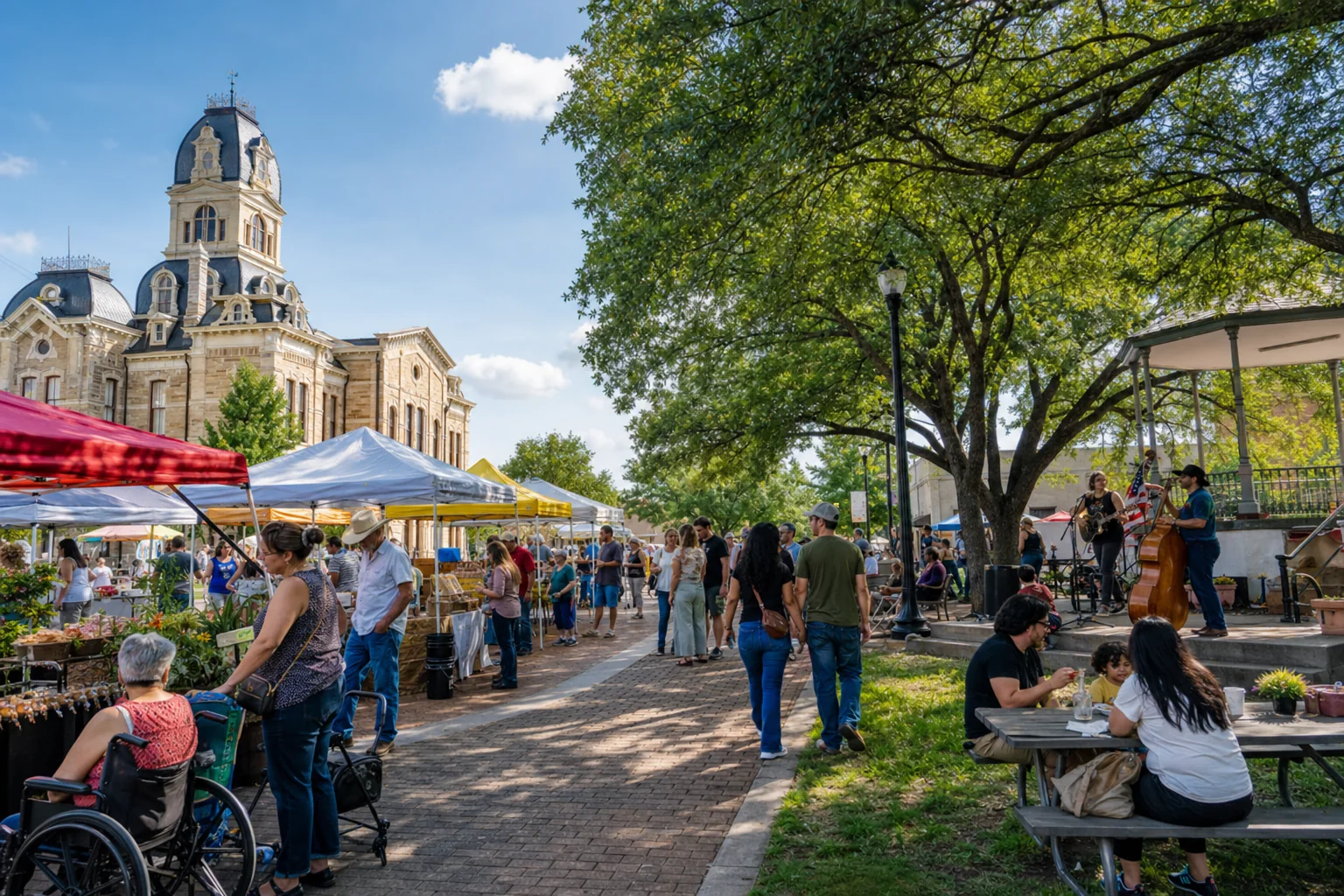
- Market stalls and live music in a leafy town square
- Image Fit
- Show Entire Image
Page image and alternative text prepared
Event / Synthetic draft
Pages, addresses & settings
-
Event DetailsDraft
Navigation order: 1
-
Invite & RSVPDraft
Navigation order: 2
-
GalleryDraft
Navigation order: 3
- Page state
- Saved, Not Public
Each page is saved separately, not public
Event / Synthetic draft
Page Studio / Preview
Meet the makers. Enjoy the afternoon.
October 17, 2026
Community square, Austin
- Event Details
- Invite & RSVP
- Gallery
Mobile draft preview; the live page is unchanged
Event / Synthetic draft
Before You Publish
- Page structure and search details Review
- Sharing image and alternative text Prepared
- Actions, contrast, responsive choices Review
- Event visibility
- Private
- Page publication
- Not published
Draft saved. Publish only after your final review.
Your next step
Start with a practice lesson or use your own details.
Read the complete walkthrough
Choose your event and details
Start in the Event Website Wizard with your event type, name, date, and location. Community events, conferences, concerts, showers, parties, and weddings can all start here. Keep the event private while drafting.
Choose a starting template
Choose the site purpose, content, and a Page Studio website template. The wizard builds Event Details, Invite & RSVP, and Gallery drafts. Templates are starting points; nothing is published by building a draft.
Make the page text your own
Open Event Details in Page Studio. Select a content block, replace the heading and welcome text, then save a draft. Saving a draft never changes the published version.
Choose an image and describe it
Replace the block image with one you are allowed to use. Give it meaningful alternative text, then check its crop and focus. Keep the image and text readable on smaller screens.
Review each page draft
Use Pages, addresses & settings to open each page, edit its content, and check its navigation label and order. Event Details, Invite & RSVP, and Gallery have separate drafts and publication states.
Check the mobile preview
Switch Page Studio from Desktop to Mobile and preview the draft. Check the title, image, date, location, and page navigation. Review the other pages at phone size as well.
Review before publishing
Review Before You Publish: structure, search and sharing details, alt text, actions, contrast, and responsive choices. Check each page and event visibility. Publish is a separate action when ready; this example remains private and unpublished.